Xilisoft DVD Copy 2 Tutorial
Xilisoft DVD Copy 2 is an extremely easy-to-handle DVD copy software to copy DVD movie perfectly at fast speed. This DVD copying software can copy DVD movie in 1:1 ratio, copy DVD to DVD folder or ISO file, and copy full disc or main movie only. It's your best choice to copy and backup DVD.
In general this article is divided into several parts as below.
Firstly, download Xilisoft DVD Copy 2, install and run it.
Step1: Load DVD
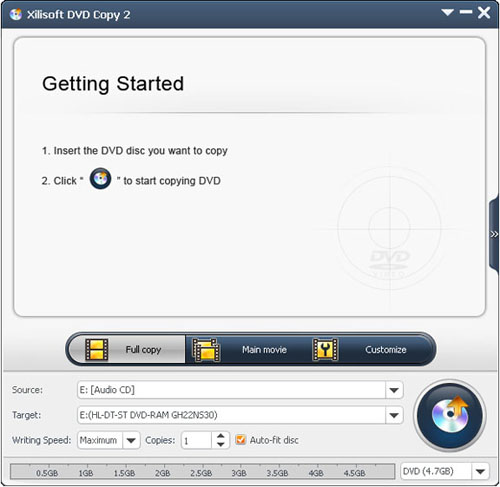
Insert a source DVD disc you want to copy. The software will automatically retrieve DVD information and display DVD cover.
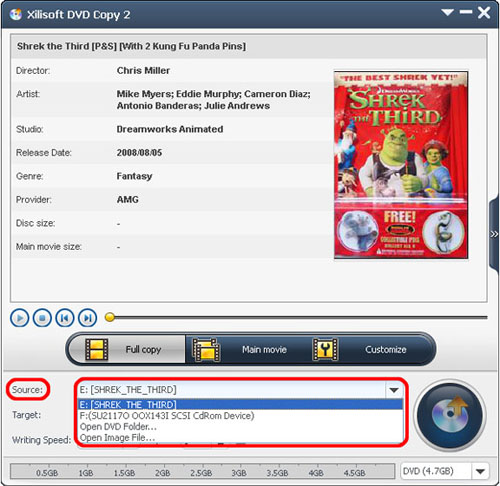
Click the drop-down menu of “Source”, you can select “Open DVD Folder…” or “Open Image File…” to load DVD Folder and ISO files.
Step2: Select Copy Mode
Three copy modes are provided: “Full copy”, “Main movie” and “Customize”.
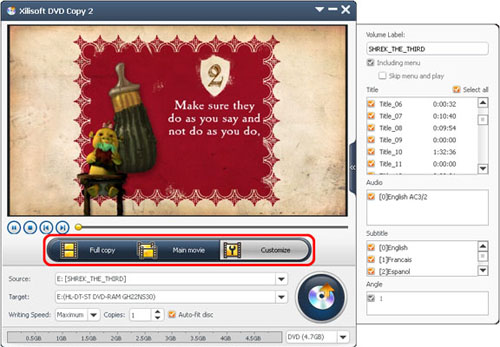
(1) Click “Full copy” button and open the “Advanced Settings” panel in the right. In this mode, the program will check all DVD titles, you can't modify. You can set “Volume Label”, preserve DVD menu, select “Audio”, “Subtitle” and “Angle”.
(2) Click “Main movie” button and open the “Advanced Settings” panel in the right. In this mode, the program will select the longest title in default which you can't modify. You are able to set “Volume Label”, preserve DVD menu, select “Audio”, “Subtitle” and “Angle”.
(3) Click “Customize” button and open the “Advanced Settings” panel in the right. In this mode, you can check DVD titles that needed to copy. You can also set “Volume Label”, preserve DVD menu, select “Audio”, “Subtitle” and “Angle”.
Step3: Choose target
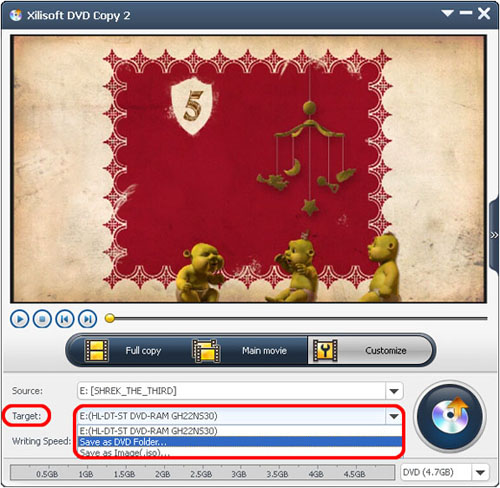
Click the drop-down button of “Target” to select a target. You can copy the source to DVD Disc, “Save as DVD Folder…” or “Save as Image(.iso)…”.
Step4: Start burning
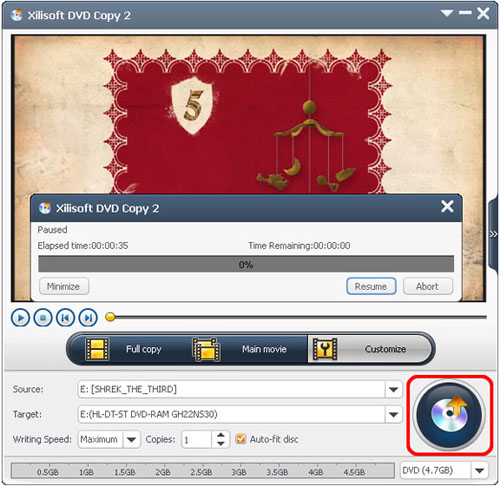
You can select the capacity of the target disc as “DVD (4.7GB)” or “DVD DL(8.5GB)” according to actual need. You can also select the writing speed and number of copies. After the above settings are done, please click “Burn” to start copying.
• Preview DVD titles
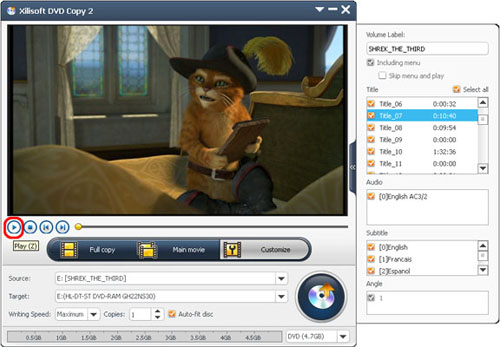
A built-in player is offered to preview DVD titles. Open the “Advanced Settings” panel in the right, select one title and click the “Play” button in the left preview window.